

How to Copy and Paste Image URL is a basic but essential skill for anyone working with websites, blogs, or online content. An image URL is the direct web address that points to an image file hosted on a server, usually ending with formats like .jpg, .png, or .webp. Unlike a page link, this URL opens the image itself in a browser tab, making it easy to share, embed, or analyze.
Understanding image URLs is important for SEO, content creation, and web design. For example, bloggers use image links to embed visuals, developers rely on them for HTML and CSS, and marketers share images across platforms without uploading files repeatedly. Browsers such as Google Chrome and services like Google Images make this process simple, but only if you know the correct method. Learning how to copy and Paste Image URL helps you avoid broken links, formatting issues, and incorrect image sources.
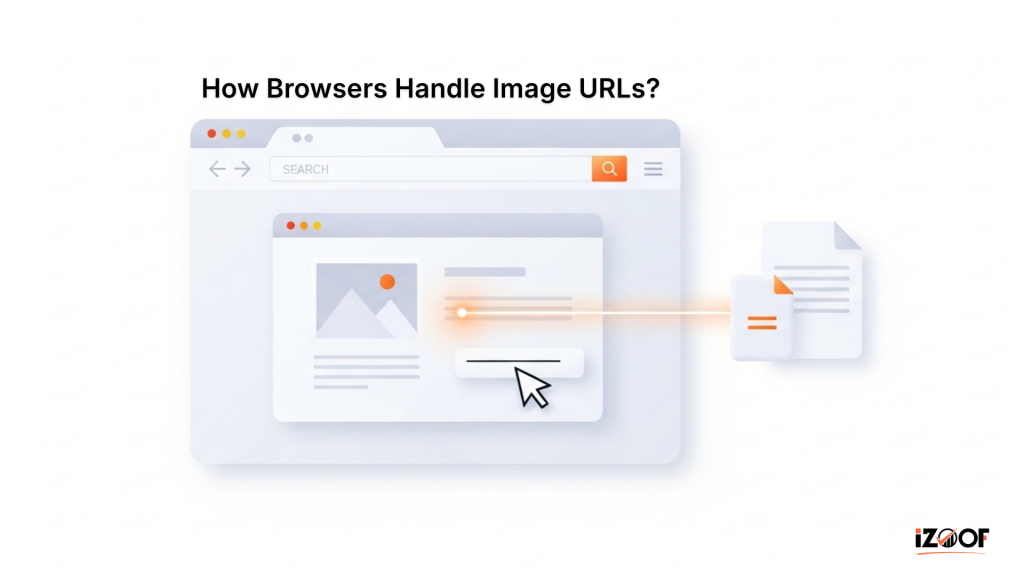
How Browsers Handle Image URLs?
When learning how to copy and Paste Image URL, it helps to understand how browsers treat images behind the scenes. Modern browsers load images as separate files from the webpage, each with its own direct address. When you right-click or long-press an image, the browser gives options to either copy the image itself or copy its source link. Choosing the correct option ensures you capture the actual image address, not extra formatting or embedded code.
Different browsers label this option slightly differently. For example, Mozilla Firefox uses “Copy Image Link,” while Safari may show “Copy Image Address.” Despite wording differences, the goal is the same: find the image source URL directly. Understanding this behavior avoids confusion and ensures your image URL copy method works consistently across devices and platforms.
How to Copy and Paste an Image URL on a Desktop?
On a desktop computer, How to Copy and Paste Image URL is quick once you know the right steps. Start by opening the webpage that contains the image in a browser like Google Chrome or Mozilla Firefox. Right-click on the image you want to use, and a context menu will appear. From this menu, select options such as “Copy image address” or “Copy image link.” This action copies the direct image URL to your clipboard.
After copying, you can paste the link anywhere using Ctrl + V (Windows) or Cmd + V (Mac). This method is ideal when you need to copy an image URL from a website for embedding in HTML, sharing in documents, or analyzing image sources. Using the correct menu option ensures you don’t copy the image file itself or unwanted formatting, keeping your image URL copy method clean and reliable.
Common Mistakes When Copying Image URLs
When learning how to copy and Paste Image URL, many users make small mistakes that lead to broken or unusable links. One common error is copying the page URL instead of the actual image source. This often happens on platforms like Google Images, where users copy the result page link rather than the direct image URL. Always ensure the link ends with an image format such as .jpg, .png, or .webp.
Another frequent issue occurs when users choose “Copy image” instead of “Copy image address” in browsers like Google Chrome or Safari, which pastes formatted data instead of a clean link. Additionally, images embedded via CSS or scripts may not have a direct URL, making the image URL copy method ineffective. Avoid these mistakes to reliably find image source URL for sharing, embedding, or website use.
How to Copy Image URL on Mobile Devices?
Understanding how to copy and paste an image URL on mobile is essential because steps vary by app and device. On Android, open Google Chrome or Firefox, then tap and hold the image until options appear. Choose “Copy image address” or “Copy link” to instantly save the direct image link to your clipboard. This is the fastest way to copy image URL from a website without opening extra menus.
On iPhone or iPad, use Safari or Chrome. Tap and hold the image, select “Copy” or “Copy Link.” If you’re browsing via the Google app, tap the image, hit Share, then Copy. This image URL copy method helps you quickly find image source URL for sharing or embedding.
How to Get an Image Link from Google Images?
Learning how to copy and paste an image URL from Google Images is simple once you follow the correct steps. Start by opening Google Images in Google Chrome or Safari. Search for your image and click it to open the larger preview. Avoid copying the page URL from the address bar, as that is not the direct image link.
Next, right-click on the image (or long-press on mobile) and select “Copy image address” or “Copy image URL.” This gives you the exact file location ending in formats like .jpg, .png, or .webp. This method is the most reliable way to find image source URL and ensures your image URL copy method works correctly for embedding, sharing, or SEO tasks without broken links.
How to Copy Image URL on Desktop Browsers?
If you work on a computer, mastering how to copy and Paste Image URL on desktop browsers saves time and avoids broken links. On Google Chrome, Mozilla Firefox, or Microsoft Edge, simply right-click on the image you want. From the menu, select “Copy image address” or “Copy image link.” This instantly copies the direct image URL to your clipboard.
For Safari on macOS, right-click (or Control-click) the image and choose “Copy Image Address.” Always confirm the link ends with an image file extension such as .jpg or .png. This approach ensures you correctly copy the image URL from the website, making it easy to find the image source URL for use in blogs, HTML, or documentation without errors.
Conclusion
Knowing how to copy and Paste Image URL is a simple but powerful skill for bloggers, developers, designers, and SEO professionals. Whether you are working on desktop browsers like Google Chrome and Mozilla Firefox, or on mobile devices using Android and iOS, the correct steps ensure you always get the direct image link. Using the proper image URL copy method helps you avoid broken links, incorrect redirects, or formatting issues.
By learning how to copy an image URL from a website, you can easily embed images, share sources, and improve content workflows. Always verify that the link points directly to the image file and not the webpage. Once mastered, finding and using the image source URL becomes a quick, reliable process in your daily digital tasks.